

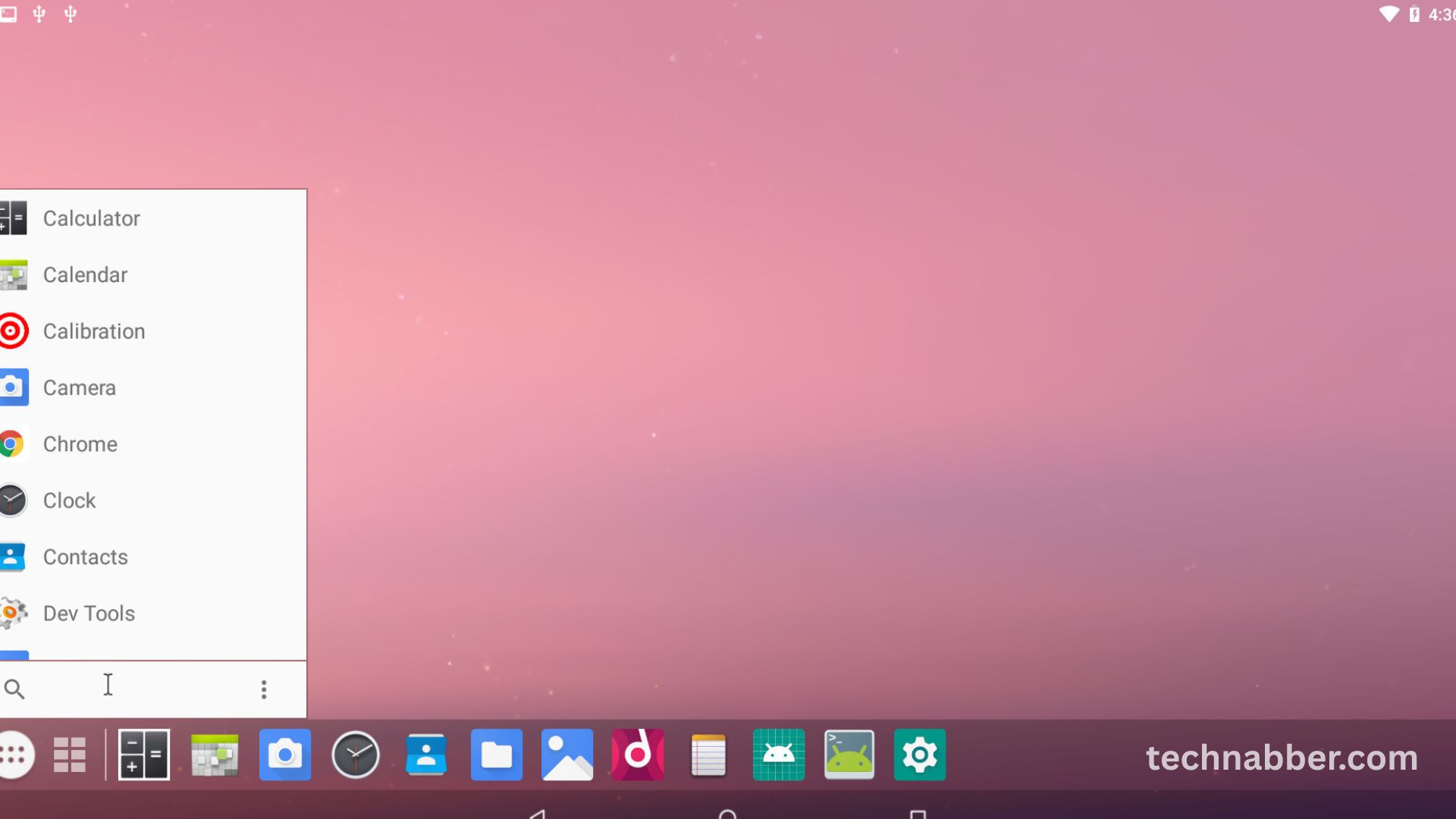
The demand to run Android apps on PC has surged in recent years as users seek greater flexibility, better performance, and enhanced usability. While smartphones remain the primary platform for Android applications, many users prefer the larger screens, powerful hardware, and multitasking capabilities of desktop computers. Whether for gaming, productivity, or app testing, running Android apps on a PC offers a seamless and efficient alternative to mobile usage.
Advancements in software technology have made it easier than ever to bring Android environments to desktop systems. Emulators and virtualization tools now allow users to access their favorite apps and games without compromising performance or functionality. This trend is reshaping how users interact with mobile applications, blending the convenience of mobile with the power of desktop computing.
Understanding How Android Apps Run on PC
To understand how users can run Android apps on PC, it is important to explore the role of emulators and compatibility layers. Android emulators simulate a mobile environment on a computer, allowing apps designed for smartphones to function as if they were running on an actual device. These tools replicate Android’s operating system, enabling smooth interaction with apps, games, and services.
Modern emulators are optimized for performance, leveraging hardware acceleration and advanced graphics rendering techniques. This ensures that even resource-intensive apps, such as games, run smoothly on desktops and laptops. With support for keyboard and mouse input, users can experience greater control and precision compared to touchscreen interactions.
Why Users Want to Run Android Apps on PC
There are several reasons why users prefer to run Android apps on PC. One of the primary motivations is improved performance. Desktop computers typically offer more powerful processors, greater memory capacity, and superior graphics capabilities compared to mobile devices. This makes them ideal for running demanding applications and games.
Another advantage is the enhanced viewing experience. Larger screens provide better visibility, making it easier to watch videos, edit content, or play games. Multitasking is also more efficient on PCs, allowing users to run multiple apps simultaneously without switching between devices. For developers and testers, running Android apps on a PC provides a convenient environment for debugging and performance analysis.
BlueStacks: A Leading Android Emulator
BlueStacks is one of the most popular tools for running Android apps on PC. Known for its user-friendly interface and high performance, BlueStacks allows users to install and run apps directly from the Google Play Store. It supports advanced features such as multi-instance functionality, enabling users to run multiple apps simultaneously.
The emulator is optimized for gaming, offering customizable controls, high frame rates, and compatibility with a wide range of titles. BlueStacks also integrates seamlessly with Windows and macOS systems, making it accessible to a broad audience. Its continuous updates ensure compatibility with the latest Android apps and features.
NoxPlayer: Performance and Customization
NoxPlayer is another powerful emulator designed for users who want to run Android apps on PC with high performance and flexibility. It offers extensive customization options, allowing users to adjust CPU and RAM usage based on their system capabilities. This ensures optimal performance for both lightweight apps and demanding games.
The emulator supports keyboard mapping, gamepad integration, and script recording, making it ideal for gamers seeking precise control. NoxPlayer’s intuitive interface and stable performance make it a reliable choice for both beginners and advanced users. Its ability to handle multiple instances further enhances productivity and multitasking capabilities.
LDPlayer: Optimized for Gaming
LDPlayer is specifically designed for gaming enthusiasts who want to run Android apps on PC with minimal lag and high performance. It supports advanced graphics rendering technologies, ensuring smooth gameplay and immersive experiences. The emulator also offers features such as keyboard mapping, multi-instance support, and high FPS settings.
LDPlayer’s lightweight design makes it suitable for systems with moderate specifications. Despite its efficiency, it delivers powerful performance, making it a popular choice among gamers. Regular updates ensure compatibility with the latest games and Android versions, enhancing its reliability and functionality.
MEmu Play: Versatile and Efficient
MEmu Play is a versatile emulator that caters to a wide range of users. It supports both Intel and AMD processors, ensuring compatibility with various hardware configurations. The emulator allows users to run multiple Android instances simultaneously, making it ideal for multitasking and productivity.
MEmu Play offers a smooth and responsive experience, with support for high-resolution displays and advanced graphics. Its compatibility with numerous apps and games makes it a reliable option for users seeking flexibility and performance. The emulator also includes features for file sharing between PC and Android environments, enhancing usability.
Android Studio Emulator: Ideal for Developers
For developers, the Android Studio Emulator provides a comprehensive environment for testing and debugging applications. Unlike gaming-focused emulators, this tool is designed to replicate real device conditions accurately. Developers can simulate different screen sizes, operating systems, and hardware configurations.
The emulator integrates seamlessly with development tools, enabling efficient testing and debugging processes. While it may require more technical knowledge to set up, it offers unmatched accuracy and reliability for professional use. This makes it an essential tool for developers aiming to create high-quality Android applications.
Benefits of Using Android Emulators on PC
Running Android apps on PC offers numerous benefits. Users can enjoy better performance, enhanced graphics, and improved multitasking capabilities. Emulators provide flexibility, allowing users to access apps without being limited by mobile hardware constraints.
For gamers, emulators deliver smoother gameplay, customizable controls, and larger displays. For professionals, they enable efficient workflows, easy file management, and seamless integration with desktop applications. Developers benefit from accurate testing environments, ensuring their apps perform well across different devices.
Challenges and Considerations
Despite their advantages, Android emulators come with certain challenges. System requirements can be demanding, particularly for high-performance emulators. Users need sufficient RAM, processing power, and storage to ensure smooth operation. Compatibility issues may also arise with certain apps or games.
Security is another important consideration. Users should download emulators from official sources to avoid malware or unauthorized software. Regular updates and proper configuration help mitigate potential risks and ensure optimal performance.
Read More: This Week’s Top Free Paid Apps You Can Download on Your Phone
Future of Running Android Apps on PC
The future of running Android apps on PC looks promising, with advancements in virtualization, cloud computing, and AI-driven optimization. Cloud-based solutions may allow users to access Android environments without installing software locally, reducing system requirements and improving accessibility.
Integration between mobile and desktop platforms is expected to become more seamless, enabling users to switch between devices effortlessly. As technology continues to evolve, the ability to run Android apps on PC will become more efficient, user-friendly, and widely adopted.
FAQs (Frequently Asked Questions)
What does it mean to run Android apps on PC?
It means using software like emulators to use mobile apps on a desktop or laptop.
Which emulator is best for gaming?
BlueStacks and LDPlayer are popular for high-performance gaming experiences.
Can low-end PCs run Android emulators?
Yes, lightweight emulators like LDPlayer and MEmu can run on moderate systems.
Is it safe to use Android emulators?
Yes, if downloaded from official websites and kept updated.
Can I use keyboard and mouse for Android apps?
Yes, most emulators support customizable keyboard and mouse controls.
Are Android emulators free to use?
Most popular emulators are free with optional premium features.
Do emulators support all Android apps?
Most apps are supported, but some may have compatibility limitations.
Is Android Studio Emulator only for developers?
Primarily yes, as it offers advanced tools for testing and debugging apps.
Conclusion:
Running Android apps on PC has become a popular solution for users seeking better performance and flexibility. Emulators like BlueStacks, NoxPlayer, and LDPlayer allow smooth access to mobile apps and games on larger screens. With improved graphics, multitasking, and customizable controls, users enjoy a more efficient experience. Developers also benefit from testing tools like Android Studio Emulator. As technology advances, running Android apps on PC continues to evolve, offering faster, more reliable, and user-friendly solutions for everyday needs.
